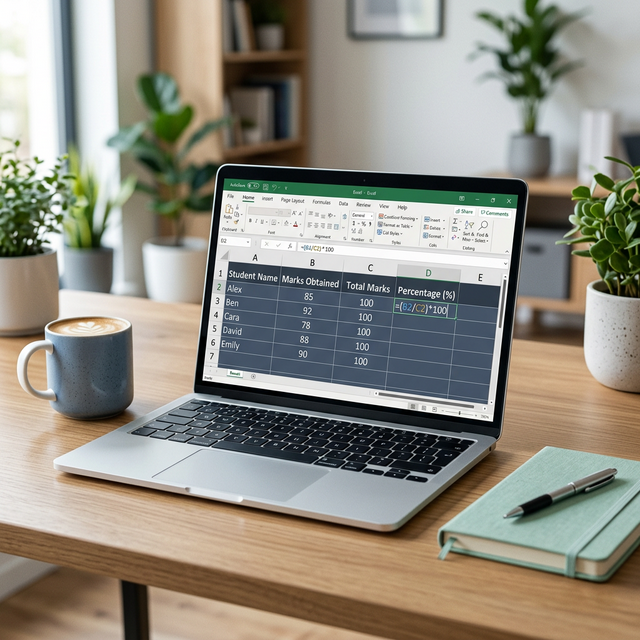
Microsoft Excel is a powerful ally for students, educators, and administrators managing complex grade sheets. While a manual calculator is fine for a single result, Excel allows you to automate thousands of calculations with a single formula, ensuring consistency and preventing human error.
The Foundations of Excel Percentages
Unlike a standard calculator where you multiply by 100 at the end, Excel treats percentages as a "formatting" layer over a decimal value. For example, the value 0.85 is mathematically identical to 85% in Excel's engine.
Method 1: The Classic Ratio
If your Obtained Marks are in cell A2 and the Maximum Possible Marks are in cell B2:
- Click on cell
C2. - Enter the formula:
=A2/B2 - Press Enter. You will likely see a decimal like
0.876. - Apply the Percentage Style: Click the % button in the 'Number' group on the Home tab (or press
Ctrl+Shift+%).
Method 2: Handling Multiple Subjects
If you have marks for five subjects in cells A2 through E2 and a grand total possible of 500:
- Formula:
=SUM(A2:E2)/500 - This automatically adds your scores and calculates the aggregate percentage against the total base.
Advanced Academic Excel Techniques
1. Conditional Formatting for "Pass/Fail"
You can make your spreadsheet "smart" by highlighting students who fall below a certain percentage.
- Select your percentage column.
- Go to Home > Conditional Formatting > Highlight Cell Rules > Less Than.
- Enter
40%(or your pass mark) and select "Red Fill". Now, any failing grade will be instantly flagged visually.
2. Calculating Percentage Change (Improvement)
If you want to track how much a student improved from Mid-terms (B2) to Finals (C2):
- Formula:
=(C2-B2)/B2 - A positive result shows growth, while a negative result shows a decline in performance.
3. Handling Errors with IFERROR
If a cell is empty or has a zero in the total marks column, Excel will show a #DIV/0! error. To keep your sheet clean, use:
=IFERROR(A2/B2, "-")- This tells Excel to show a simple dash instead of an ugly error message if the data is missing.
Pro Tips for Efficiency
- The Flash Fill shortcut: Once you enter a formula in the first row, double-click the small green square (the "fill handle") at the bottom-right of cell
C2. Excel will instantly populate the formula for every student in your list. - Absolute References: If your Total Marks is in a single cell (like
$F$1), use a dollar sign in your formula (e.g.,=A2/$F$1) to lock that reference when dragging the formula down.
Frequently Asked Questions
Discussion
Loading comments...